Use scenarios
Browse the ready-to-use scenario library to find inspiration.
Two ways to create your scene
With MyShotPro, you have two ways to create your backdrop: import a reference image for inspiration, or use the scenario generator so AI creates multiple settings from just a few words.
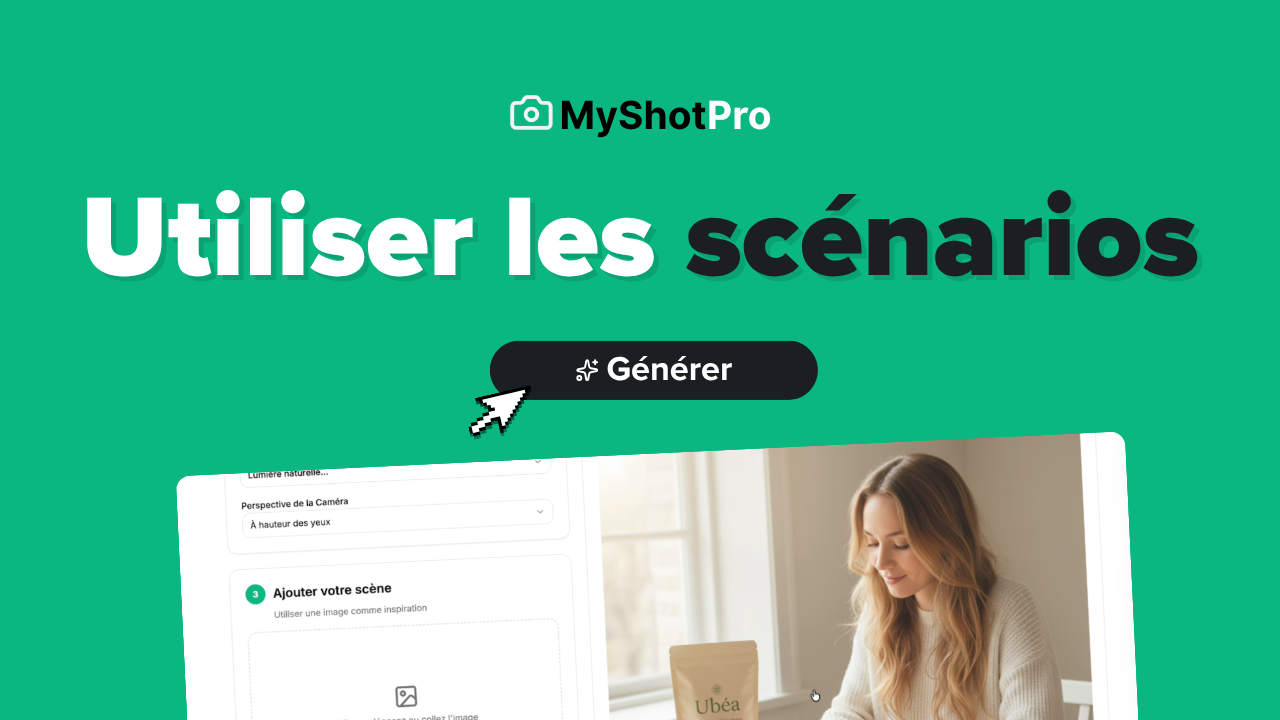
Method 1 — Use the scenario generator
The scenario generator automatically creates 5 different settings from your idea, with adapted camera angles.
- •1. After importing your subject, go to the 'Need inspiration' section
- •2. Describe your idea in a few words (e.g., 'my product on a dining table')
- •3. Click 'Get ideas'
- •4. AI generates 5 different scenarios with varied camera angles
- •5. Review each scenario: detailed description, lighting, setting, camera angle
- •6. Click the scenario of your choice and start the generation
💡 Tip
Pay attention to the proposed camera angles! For products, AI favors close-ups and tight shots. For portraits or scenes with people, it proposes medium or wide shots.
Refine your scenarios
You can go further by refining your idea. For example, instead of 'my product on a table', try 'a woman having breakfast with my product on the table'. The AI will adapt scenarios with wider shots and richer settings.
Once generated, your scenarios remain available — no need to regenerate them. You can display them again anytime to try another one.
Method 2 — Import a reference image
If you already have an image whose setting you love, import it directly. MyShotPro's image analysis engine will reproduce a similar backdrop for your subject.
Save a scenario as favorite
When you like a scenario, save it as a favorite to reuse later:
- •Display your scenarios and click the favorite icon
- •Find your favorites in 'Use a favorite scenario'
- •Reuse a favorite for any other product or portrait
- •The scenario automatically adapts to the new imported subject
💡 Tip
Even if a favorite scenario mentions a specific product in its description, MyShotPro will generate the photo based on the main image you uploaded, not the original product!
Edit the result
After generation, use the 'Edit' button to adjust details: change a color, add or remove an element. For example, if an object's color isn't exact, simply ask to correct it.